
Template site for Rotary Clubs in GB & I
Home | tutorial home | District Committee Members
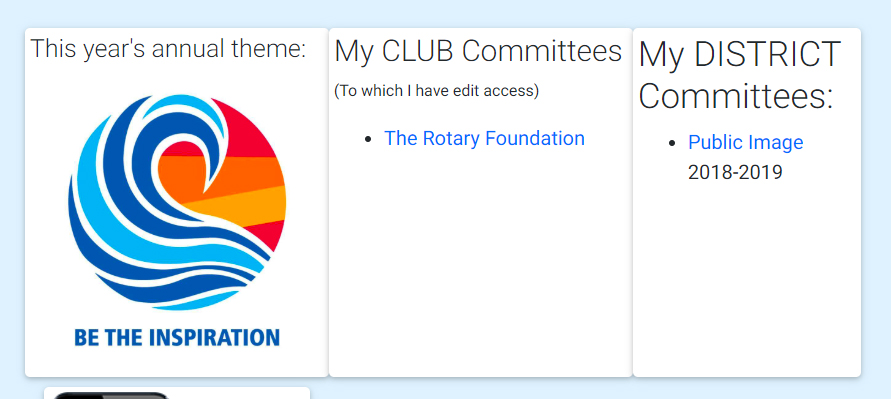
It is now possible for members of District Committees to add sub-pages or reports to the committee pages, which can be read by the public or only by fellow committee members, if desired. To do this, login and look for your committee on the members page;-
Click on the relevant committee under "My District Committees" on the right. This will get you to the that committee version of this;-
.jpg)
To update the Committee main page, click on "main page ("top-level". You will then be able to update this in the editor. Again the tutorial for this is awaiting an update, but have a look at http://www.rotary-ribi.org/tutorials/index.php?PgID=90414, which might help. It is similar to using a word processor.
To read or update a sub-page or page, just click on the relevant link (in blue).
To add a completely new page, click on "Add a page/event" on the left hand column. This gets you;-
.jpg)
Page Type - select "cttee or general district page" from drop-down list, unless you are adding an event.
Target Audience – tick appropriate box- you have the option of making the page visible to the public or just committee members.
Under Page - select whichever sub-page is relevant, unless you want a completely new sub-section, in which case leave this blank.
Page title- give it a name
Start/end date - only needed for an event
Brief details - a one line summary of what the page is about- important for Google searches
Contact member - you can select a member of the committee to receive comments. At the moment, this may only be you until you add your committee members and their jobs (unless your District webmaster has already done this)
Main Pic I would not attempt this yet, if I were you - wait until you are confident with the text! However, if you wish, click on the above tutorial link first.
Editor - Some of the icons will probably be familiar, but if you hover your cursor over them, you will see a description of their function. Putting your cursor into the space below the icons will allow you to type as in a word processor. However, if you want to ad a significant amount of text, it is best to do this in either word or notebook, then copy and paste it into the editor using the “paste from Word" icon, or paste as plain text icon.
Insert - don't forget to click the "Insert" button at the very bottom of the page.
